Have you ever taken your phone out of your pocket and thought, “Why is my phone so hot?!” Maybe you actually said it out loud or dropped your phone from surprise. You might have also noticed that the screen was still fully lit, the phone didn’t automatically lock, and that your battery was unusually low.
You may not know why it happened. What you do know is that you’re annoyed, and you feel like your phone isn’t working as it should.
Here’s the part an average user probably doesn’t know: In many cases, the reason all those things happened was because there was at least one application on the phone that was doing work the user probably didn’t ask it to do, maybe even while they weren’t actively using it, burning battery and generating heat. But when users notice that their phone always does this after they open a specific app, the next step is usually to uninstall it. Problem solved.
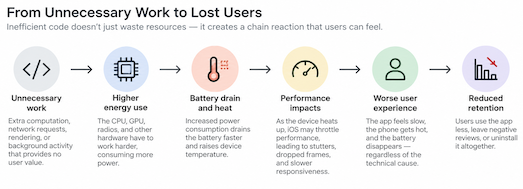
This is precisely why app developers should put emphasis on eliminating unnecessary computation and making more efficient use of device resources. This is sometimes called “green coding,” and that’s the term I’ll be using from here on.
What Green Coding Means on iOS
A mobile device is an incredible tool, and battery life has come a very long way in the last decade — but, as Apple puts it, “Energy is finite. It’s stored in the battery and dissipates over time as more power is required.”1 Applications are not some ethereal magic on the device. The computation they use has a cost. The CPU, GPU, networking, display, and other components all use some of that energy, and as engineers we should take that into consideration when we develop an application.
What does that mean for an engineer? How do we maximize how we use that limited resource? Essentially, green coding just means eliminating any work that isn’t providing a real value to the app or the user.
“By being aware of energy and taking it into account while developing your app, you can proactively take measures that make your code more efficient.” - Apple1
Stop Doing Work Nobody Asked For
Most engineers already deal with multiple types of work in their applications. It might be a REST API network call or asynchronous tasks, Actors, etc., and most of us have some experience dealing with work lifecycles. But there are several less obvious or unintuitive situations that might require special handling.
Something I’ve personally seen in many apps I’ve worked on is polling. Sometimes you need your app to react to live data or close to it. A common practice I’ve seen in less efficient apps is setting a timer to trigger every few seconds to check for a change in the information. In some cases this can’t be avoided, like if your app uses a pull method to grab new data at regular intervals. But timers are very often overused, or used in places where other mechanisms might be better.
“Some apps use timers to poll for state changes when they should respond to events instead.” - Apple2
If the only thing you need is for your view to react to changes in data, you should be utilizing tools like the Observable macro, conformance to ObservableObject, or Combine. These are custom tailored to react efficiently to events, while polling spins up the various components unnecessarily and burns precious energy.
Another important issue is letting work run to completion when the results no longer matter. If you start some sort of work for a view but then the view goes out of scope, is navigated away, or gets covered by another view in the stack, reevaluate whether that work really needs to finish its run. If the answer is “no,” add support for canceling the work the moment its relevance ends.
While we’re talking about unnecessary work, another key example is state changes and redraws. Take the time to make your views small and self-contained. That makes your code cleaner, which is nice, but more importantly it reduces larger views redrawing everything on every single state change. If you use subviews intelligently, an ideal outcome would be that only the affected subview would be redrawn when its state changes. Always ask yourself, “Do I actually want all of these views to redraw if this state var changes?” If not, then you can break the view down further.
Networking Costs More Than Bytes
One thing we often don’t consider with networking is that it’s not free energy-wise. Every time your app triggers a network request, the radio has to wake up, establish a connection, and maintain that connection for the duration of the call — and it might even remain in a higher power state for a brief period after the request. Multiple sporadic network calls are significantly less efficient than batching requests. If you batch your requests and send them together, the radio only wakes up once to handle that batch. The difference between 20 batched requests and 20 sporadic requests can be much more significant than an engineer might suspect.
“Sporadic network transactions result in high overhead and can quickly deplete the device’s battery.” - Apple3
When dealing with networking, focus on a couple simple concepts.
- Cache the data you already have to avoid repeatedly fetching already collected data.
- Batch requests to reduce repeated wakeups.
- Defer calls that aren’t immediately needed. Schedule them for later.
Following just those three rules regularly will improve your apps’ networking efficiency, and you might be surprised by the effectiveness.
UI Work Isn’t Free Either
Let’s talk about the elephant in the room: redraw loops. SwiftUI is an amazing lightweight toolkit, and I personally love using it and exploring new ways to test its limits. But one thing I know I’m very guilty of, and every other dev I’ve worked with is as well, is letting the app reevaluate views entirely too often.
Looking at what causes a view to be reevaluated is helpful here. When state or observed data that a view depends on changes, SwiftUI may reevaluate that portion of the view hierarchy. I mentioned above the idea of breaking views down into their component parts, and this basic concept is exactly why that’s so valuable. Let’s say I have a view with a SwiftData query, a couple state variables for some important states in the view, a couple tasks, some more state variables that check whether the tasks are currently working, another couple state variable that track the result of those tasks … you see where I’m going. Before you know it, “Massive View Controller” is back, just the SwiftUI version.
What this means in practical terms is that the more state and observed data a large view depends on, the more opportunities there are for changes to trigger reevaluation of that view. It’s not uncommon to catch views that update 10, 20, 30 times before settling.
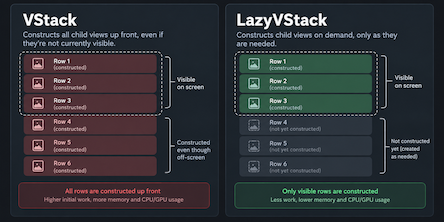
Another common issue is not taking advantage of the “lazy” versions of SwiftUI tools. A VStack will load everything in the stack preemptively. That means that if you have videos or animations in each row, you could see a huge spike in CPU/GPU usage. Using a LazyVStack will have a very significant impact, reducing what is directly constructed to only what is needed for the view to function.
“Power-efficient apps lead to longer engagement and greater satisfaction, a true win-win.” - WWDC254
Why do we care about this? I mentioned CPU/GPU usage above. Both are massive contributors to energy and heat generation, and we pay this price without adding any value.
Background Work and Hardware: Let the Phone Sleep
I remember reading once that the best fights are the ones you avoid. Similarly, the most efficient CPU operation is the one that never happens.
I think that’s a valuable tenet to hold onto when auditing background tasks or behaviors. I have more than one app on my personal iPhone that regularly triggers the Apple warning about my location being used while the app is inactive. That’s been the catalyst in several cases for me to remove that app entirely. If your app uses location data, ask yourself: Does it need location while the app is active? How often does it need it? What value is the location providing to the customer? The answers to those questions might be “yes, frequently, a lot,” and if so that’s great. But if they’re not, consider tidying up location usage.
“Don’t forget to call the
stopUpdatingLocationmethod of the location manager object when location updates are no longer needed.” - Apple5
Likewise, audit usage background tasks. If your app uses background fetches to update important data, how often does the data actually change? Is it once a day? Twice? Every Hour? These questions can help you fine-tune how often you use device resources for an update. Don’t use background fetches when the value is lost.
Consider also looking into the usage of Bluetooth or any device sensors being accessed. If the usage doesn’t provide any real value to the user, then don’t perform it or perform it less often.
Background tasks and behaviors still fire up resources. The fetches still wake up the radio, like we discussed previously. Location wakes up multiple hardware components. Some of these can be significant energy consumers if left unchecked.
Measure, Don’t Guess
Apple has provided us with some powerful tools to do precisely what this article is describing. I can give you generic advice about efficiency practices I’ve stumbled my way into, but the proof is in the pudding.
“Gather information from Xcode, MetricKit, and Instruments to understand your app’s battery use.” - Apple6
While working on development, make liberal use of the Instruments Power Profiler.
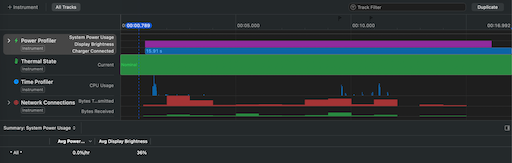
Run your app with the profiler and look for spikes or continuous growth, especially when idle. Identify the problem areas, then home in and find the specific pain points, views, or operations.4
Make use of tests. Specifically, include tests leveraging the XCTCPUMetric API to measure power performance in key areas where it might be affected, like those with heavy operations, network tasks, busy views, and so on.
Don’t just write it and forget it; use those tests. Set them up in your GitHub repository to run on every pull request, or set automated scripts to run the tests for you regularly and report any regressions.
For releases, have some sort of logging, performance tracking, or crash reporters so you get real feedback from actual usage. Make sure you have clear paths for users to report issues in a manner that provides you valuable information that can be investigated.
The Business Case
OK, so now we know several ways to maximize energy efficiency in our applications. Why should we? Is saving 4% usage of battery actually that valuable in the long run?
Yes, and here’s why.
From the user’s perspective, they get an app that is performant, doesn’t drain their battery, has fewer interrupts in the workflow, only uses the network when it genuinely needs to, isn’t heating up their phone, and is overall just a better, more polished product. That’s the sort of application that they’ll keep on their phone and be more inclined to use regularly.
“People love apps they can rely on throughout their day, and a crucial part of that reliability is excellent battery life.” - Apple4
From the engineering perspective, you get a cleaner architecture, easy-to-debug views, and tests that can provide instant feedback on regressions. Most importantly, you get happier customers, fewer complaints, and better retention.
Always remember that the user doesn’t know about excessive timers, poorly designed SwiftUI, or spammy network traffic, but they know about their experience. Bad performance, an overheating phone, and a draining battery are observable behaviors that users can feel and see. They signal a poorly made app — one that users are more likely to toss for another option.
-
Energy Efficiency Guide for iOS Apps: Fundamental Concepts. Apple Developer Documentation. 2016. https://developer.apple.com/library/archive/documentation/Performance/Conceptual/EnergyGuide-iOS/FundamentalConcepts.html ↩ ↩2
-
Energy Efficiency Guide for iOS Apps: Minimize Timer Use. Apple Developer Documentation. 2016. https://developer.apple.com/library/archive/documentation/Performance/Conceptual/EnergyGuide-iOS/MinimizeTimerUse.html ↩
-
Energy Efficiency Guide for iOS Apps: Energy and Networking. Apple Developer Documentation. 2016. https://developer.apple.com/library/archive/documentation/Performance/Conceptual/EnergyGuide-iOS/EnergyandNetworking.html ↩
-
Profile and optimize power usage in your app. WWDC25. Apple Developer. 2025. https://developer.apple.com/videos/play/wwdc2025/226/ ↩ ↩2 ↩3
-
Energy Efficiency Guide for iOS Apps: Reduce Location Accuracy and Duration. Apple Developer Documentation. 2016. https://developer.apple.com/library/archive/documentation/Performance/Conceptual/EnergyGuide-iOS/LocationBestPractices.html ↩
-
Analyzing your app’s battery use. Apple Developer Documentation. 2026. https://developer.apple.com/documentation/xcode/analyzing-your-app-s-battery-use ↩